How much power does my laptop use?
On battery, Windows already measures your laptop's power draw, and shows almost none of it. Here is how to see the watts, the time left and battery health.
The battery reports how fast it is discharging, and that rate covers the whole laptop. The short answer: unplug the charger and read it. PCWattVault, a free app from the Microsoft Store, shows it live in watts and marks it “measured from the battery”. On the charger, software can only estimate; for a real figure there, measure at the wall with a plug-in meter or a smart plug.
What Windows knows, and what it shows you
| Number | In Windows | In PCWattVault |
|---|---|---|
| Power draw on battery, in watts | Measured by the battery, but not shown in the battery flyout | Live, marked “measured from the battery” |
| Time left | An estimate in the battery flyout | At the current draw, averaged over the last minute |
| Battery health | Not in the battery flyout, nor in Settings on Windows 10; the battery report lists the two capacities | Live, on the battery card |
| Power draw on the charger | Not measured | An estimate, calibrated from the battery from version 1.0.20; a smart plug measures it at the wall |
Method 1: on battery, the battery measures it
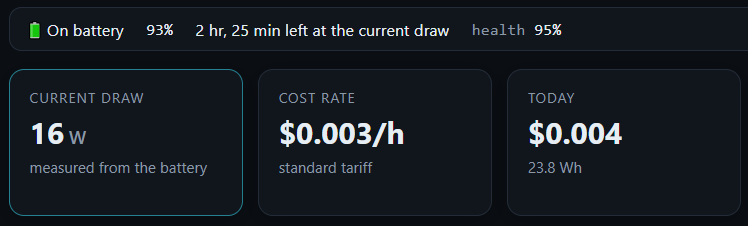
When the laptop runs on battery, Windows reports the battery's discharge rate: how many watts are leaving it. Everything the laptop powers draws from the battery, the display included, so this one figure is the whole laptop's power draw — a measurement, not an estimate.
PCWattVault reads it from version 1.0.10, and the dashboard marks the current draw “measured from the battery”. The cost it shows for that time includes the charger's losses, because that energy is paid for later, when the battery is recharged.
- Install PCWattVault from the Microsoft Store — it is free.
- Unplug the charger.
- Read Current draw on the dashboard; under the watts it says “measured from the battery”.
One laptop as an example, not a typical range: our MSI test laptop, on Windows 10 and on battery, draws roughly 9–13 W at idle and 13–20 W in light use, with short spikes near 40 W. The top of its dashboard, on battery:
Method 2: on the charger, measure at the wall
On the charger the battery is no longer the source, so PCWattVault's total is an estimate again. From version 1.0.20 that estimate starts from laptop defaults — a low base load and mobile CPU figures — instead of desktop ones, and then calibrates itself from the battery: after 10 minutes on battery, PCWattVault learns what the sensors miss and uses it on the charger, where nothing measures. What it learns is kept across restarts, and the dashboard says “calibrated on battery” under the figure. LibreHardwareMonitor makes the CPU and GPU readings more precise, but the total on the charger stays an estimate.
Only a plug-in energy meter or a smart plug measures a laptop at the wall. It sees everything the charger draws: the laptop, the battery while it charges, and the charger's own losses. PCWattVault can read a TP-Link Tapo P110 or P115 directly (Pro); how to measure your PC's power usage compares the ways to do it.
No meter? Unplug for a minute and read the battery's own measurement.
Time left at the current draw
PCWattVault 1.0.18 adds a battery card at the top of the dashboard — free, and shown only on PCs that have a battery. On battery it shows the charge, the time left at the current draw and the battery's health.
- How time left is worked out — the remaining capacity divided by the discharge rate, averaged over the last minute, so one spike does not move it by an hour.
- Right after unplugging — “estimating time left…” for about 10 seconds. The average restarts every time you plug in or unplug.
- On the charger — “🔌 Charging” or “🔌 On the charger”, with the charge and the health, and no time left.
How close is it? One test, on one laptop: on 2 October 2026, our MSI test laptop on Windows 10, at 87%, the card said “2 hr, 34 min left” and the Windows battery flyout said “2 hours 35 minutes remaining”. That is no guarantee for every laptop, but the two agreed within a minute.
Battery health: how to check it
Battery health is how much the battery holds when full, as a share of what it was designed to hold: FULL CHARGE CAPACITY ÷ DESIGN CAPACITY. Windows does not show it in the battery flyout, nor anywhere in Settings on Windows 10. The built-in way is the battery report:
- Open Terminal (or Command Prompt) and run
powercfg /batteryreport. - It saves battery-report.html in the folder the terminal opened in — normally your user folder — and prints the full path.
- Open that file, find DESIGN CAPACITY and FULL CHARGE CAPACITY, and divide the second by the first.
Laptop makers' own tools, such as Lenovo Vantage and Dell's utilities, show it too, for their own laptops only. PCWattVault shows the same ratio live on the battery card; hover over it to see both capacities in Wh. On our test laptop it reads 95%.
What a laptop costs to run
Energy is power multiplied by time: kWh = watts × hours ÷ 1000. A laptop averaging 15 W for 8 hours a day uses 0.12 kWh a day — 43.8 kWh a year. At an example tariff of €0.25 per kWh, that comes to about €11 a year. PCWattVault does this sum continuously with your own tariff, and on battery its cost already includes the charger's losses.
FAQ
Why does my time left jump around? Because time left divides the remaining capacity by the draw, and the draw changes from second to second. PCWattVault averages the discharge rate over the last minute, so a single spike does not move its estimate by an hour; the average restarts whenever you plug in or unplug.
Is 95% battery health bad? No. It means the battery, when full, holds 95% of what it was designed to hold. Every lithium-ion battery loses capacity with use and age; what matters is whether the runtime you get is still enough for you.
Does charging count toward the cost? Yes. The energy a laptop uses on battery is paid for when the battery is recharged, together with the charger's losses. PCWattVault's cost on battery already includes those losses.
Why does PCWattVault show more watts on the charger than on battery? On battery it reads the battery's own measurement; on the charger it falls back to an estimate. Before version 1.0.20 that estimate used desktop figures, which usually read high on a laptop. From 1.0.20 it starts from laptop defaults and, after 10 minutes on battery, calibrates itself from the battery's measurement; the dashboard then says “calibrated on battery”. For a measured figure on the charger, put the charger on a smart plug.
Does it work on a desktop? PCWattVault does; the battery card does not. A desktop has no battery, so the card does not appear, and the total comes from the component sensors and the power model — or from a smart plug at the wall.